iPhone
Tap a task in any list. It opens on its own page; tap ‹ at the top to go back to the list.
iPad and Mac
Click a task, or select it and press Return. It opens in a drawer at the right of the list, and the list stays where it was. Click another task to switch, and click the open one again, or press Esc, to close the drawer.
There’s no Save button. What you type is saved a moment after you stop, and everything else the moment you choose it. Go back or close the drawer whenever you like.
Read the transcript
Tap any task to open it. Everything about it is on one page. Tap Notes and type. Details, a link, an address: anything that helps.
Further down are the day, the deadline and the estimate. Change any of it. Here, fifteen minutes becomes thirty.
At the bottom are Let go, History and Delete. History shows every change, on every device.
There's no Save button. Go back, and your changes are already there.
There's a page for every step at billine.io/help.
What you can change
From the top of the page down:
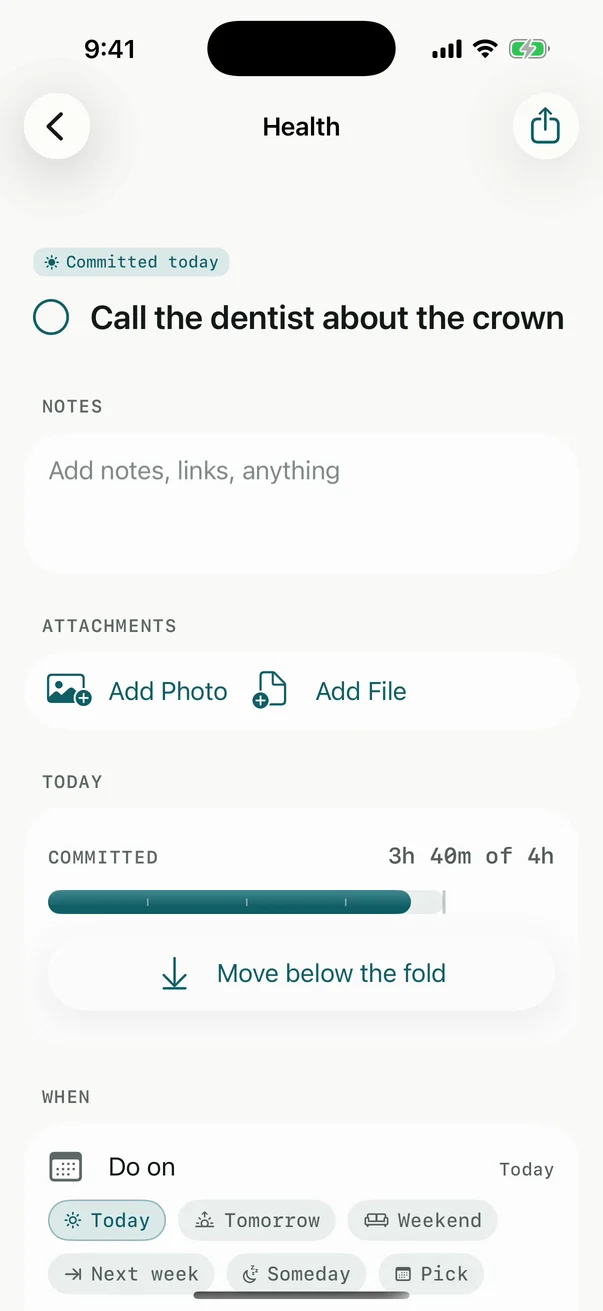
| Section | What it holds |
|---|---|
| The title | Tap it and type. The circle beside it completes the task. |
| Notes | Anything: details, links, an address. |
| Attachments | Photos and files. See Attachments. |
| Today | Commit to today, or Move below the fold if it’s already committed, with what that does to your day. |
| When | Do on: Today, Tomorrow, Weekend, Next week, Someday or Pick a date, and At a time if it has one. Deadline is separate: turn it on and choose the day it’s due. See Do-date and deadline. |
| Estimate | How long it takes: 5m to 3h, or Custom. Today adds these up against your capacity. |
| Filed under | Project, and Labels. Choose New project… to make one and move the task into it. |
| Repeats | How often it comes back. See Repeat a task. |
| Subtasks | The steps inside it. See Subtasks. |
| Details | When you created it and last touched it. |
The words you typed when you captured the task already filled in what they could: ~30m is the estimate, /home the project, friday the do-date. Here you can change any of it.
At the bottom
- Let go moves the task to the Graveyard, where you can bring it back.
- History shows every change to it, on every device, and when.
- Delete is for mistakes. Billine asks first.
To share a task as text, tap Share at the top on iPhone, or in the drawer’s header on iPad and Mac.
Changed your mind?
Completing, letting go and deleting each show a message with Undo. On iPad and Mac, ⌘Z works too. A change to a field doesn’t have an Undo: change it back, and History shows what it was. See Let go, delete and undo.
Checked against Billine 1.0.1