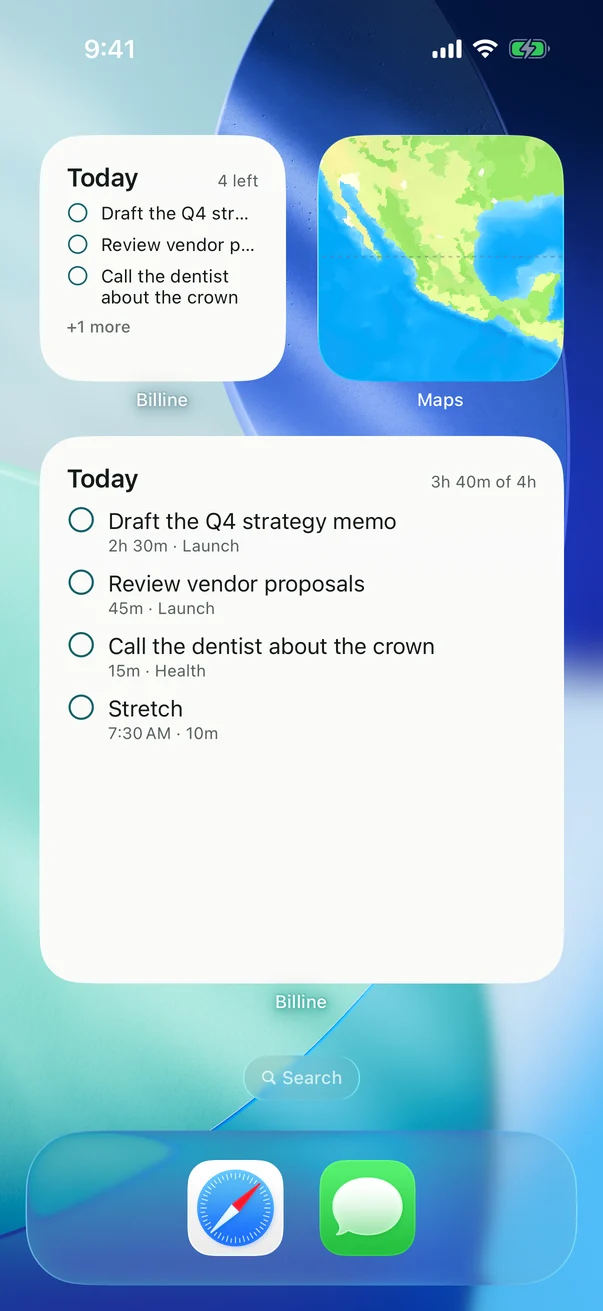
Billine’s Today widget shows what you committed to today, in three sizes. Tap the circle beside a task to complete it right there; tap anywhere else to open Billine.
Add it to the Home Screen
- Touch and hold an empty spot on the Home Screen until the icons jiggle.
- Tap Edit, then Add Widget.
- Search for Billine, swipe to the size you want, and tap Add Widget.
- Tap Done.
The small one shows how many tasks are left and the first few. The large one shows the day’s tasks with their lengths and the capacity at the top.
On the Lock Screen (iPhone)
- Touch and hold the Lock Screen, then tap Customize and choose the Lock Screen.
- Tap the widget area and choose Billine: how many are left today, or the next task.
On the Mac
Right-click the desktop, choose Edit Widgets, and drag Billine’s Today widget onto the desktop or into Notification Center.
Control Center and the Action button
Billine has two controls: New Task, which opens a new task, and Today, which opens Today. Add them in Control Center (touch and hold, then Add a Control), on the Lock Screen in place of the flashlight or camera, or on the Action button in Settings › Action Button › Controls.
The widgets update as you work, in the app or from another device with iCloud sync.
Checked against Billine 1.0