Billine gives you two ways to remove a task, and they mean different things.
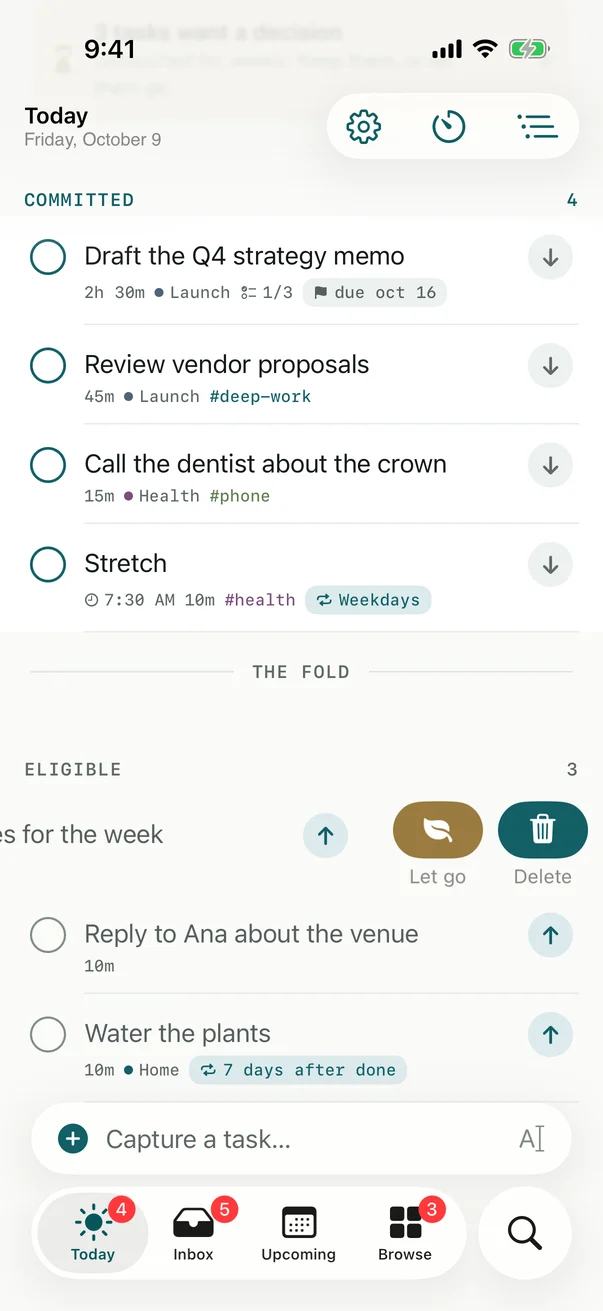
Let go
For a task you’ve decided not to do. It leaves your lists and goes to the Graveyard, where it stays, recoverable.
iPhone
Swipe the task to the left and tap Let go. You can also touch and hold it, or open it, and choose Let go.
iPad and Mac
Right-click the task and choose Let go. You can also open it and choose Let go. On iPad, swipe it to the left or touch and hold it, as on iPhone.

In the Stale review, swipe left, or press ←.
To bring one back, open Graveyard (in Browse on iPhone, under Review in the sidebar on iPad and Mac) and tap Restore. Nothing in the Graveyard is ever deleted.
Delete
For a task that shouldn’t exist: a duplicate, a typo. Swipe the task, touch and hold it, open it, or select it and press Delete on a keyboard, then choose Delete. Its subtasks go with it.
For a repeating task, Billine asks whether to delete this one or this and all future ones.
Undo
After almost anything that changes or removes a task, a message appears at the bottom with Undo. You can also:
- Press ⌘Z, or choose Edit › Undo, on iPad and Mac.
- Shake your iPhone.
A change you made on a selection of several tasks is undone in one step.
Checked against Billine 1.0