iPhone
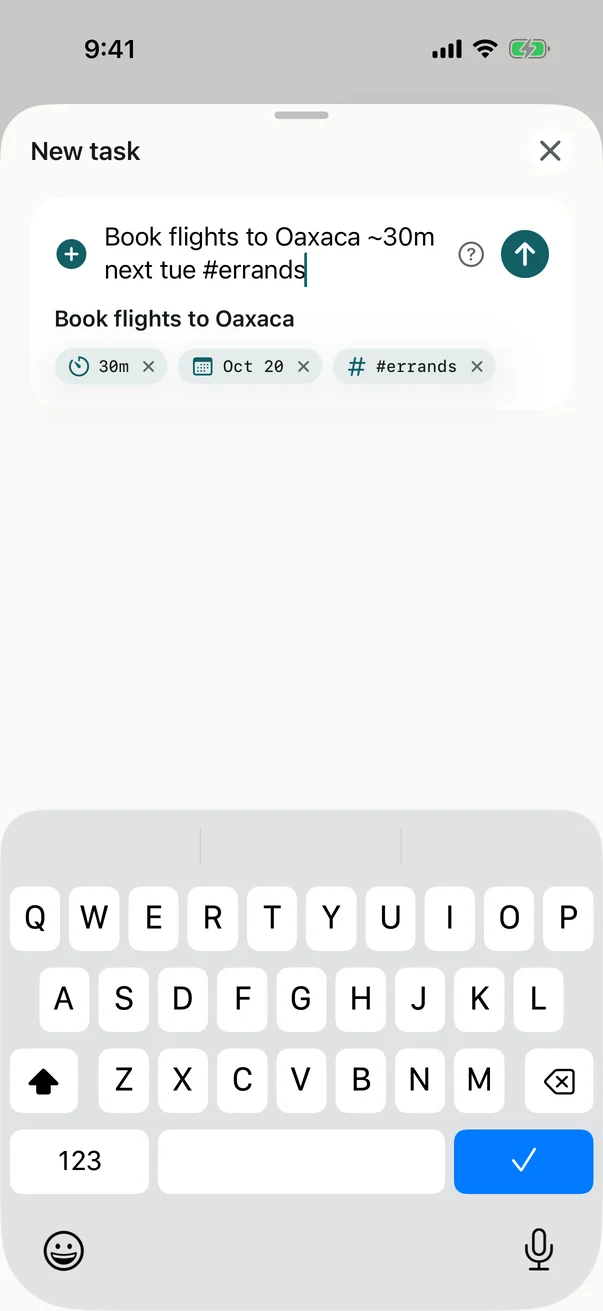
- Tap Capture a task… above the tab bar.
- Type the task. Add a day, an estimate or a project if you know them:
book flights ~30m tomorrow /trip. - Press Return, or tap the arrow.
iPad and Mac
- Press ⌘N, click + in the toolbar, or choose File › New Task.
- Type the task and press Return, or ⌘Return.

On the Mac you can also capture without leaving the app you’re in: press ⌃⌥Space.
Several in a row
The sheet stays open after each task, so you can empty your head in one go. Its title counts what you’ve captured, and each task shows where it went: the Inbox, Today, a project or a day. Close it with ✕, or Escape on a keyboard. If you’ve typed something that isn’t saved yet, Billine asks before throwing it away.
Where it lands
Read the transcript
Say you add a task from Today.
You close the sheet, and it isn't on Today. It's not lost. It went where what you typed sent it. The sheet told you where it went. With just a title, and no day or project, a task goes to the Inbox. The Inbox count went up by one. Tap it, and there's your task, waiting for you to decide.
Add a project, and it goes to that project.
Add a day, and it waits for that day.
And type “!today”, and it goes straight onto Today.
Already captured? The menu on its row sends it to Today, to another day, or into a project.
There's a page for every step at billine.io/help.
| You typed | It goes to |
|---|---|
| Just a title | The Inbox |
A project, like /home |
That project |
A day, like friday |
That day, in Upcoming, and Today when it comes |
!today |
Today, above the fold |
The sheet lists each task with where it went, so nothing disappears without a word. Changed your mind? Open the task where it landed and change its day or project, or, in the Inbox, use the menu on its row (Clear your Inbox).
Other ways in
- The Inbox and each project have their own capture field at the top.
- Search: if nothing matches, add what you searched for as a task.
- Siri: “Add a task in Billine”.
- The share sheet in any app: choose Billine.
- Control Center, the Lock Screen and the Action button: the New Task control.
Checked against Billine 1.0